







Timesheet approvals

Review, Approve, and Lock Hours with Timesheet Approval Software

The timesheet approval workflow in TimeCamp allows employees to submit timesheets daily or weekly. Managers approve or reject timesheets and can leave optional notes with suggestions. Submitted or approved timesheets are locked. Only approvers or admins can reopen them, so the numbers reaching payroll and client billing remain unchanged.

No credit card required SSO ready GDPR compliant

4.7 (1500+ reviews)

Timesheet approvals top image

Crafted locally, trusted globally

Easy timesheet approval workflow: submit, review, and approve

No matter how your employees track time against tasks, their hours immediately go to the timesheets, ready to submit daily or weekly, according to the company's policy.

Grant timesheet approval permissions

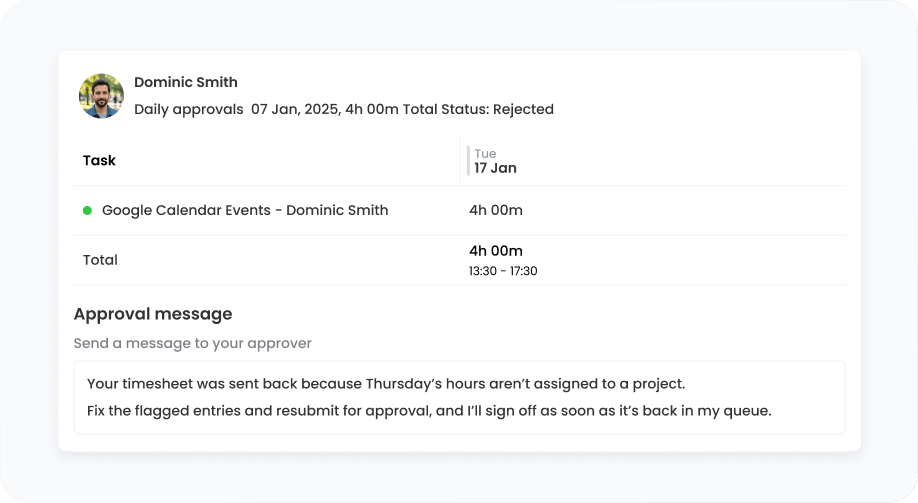
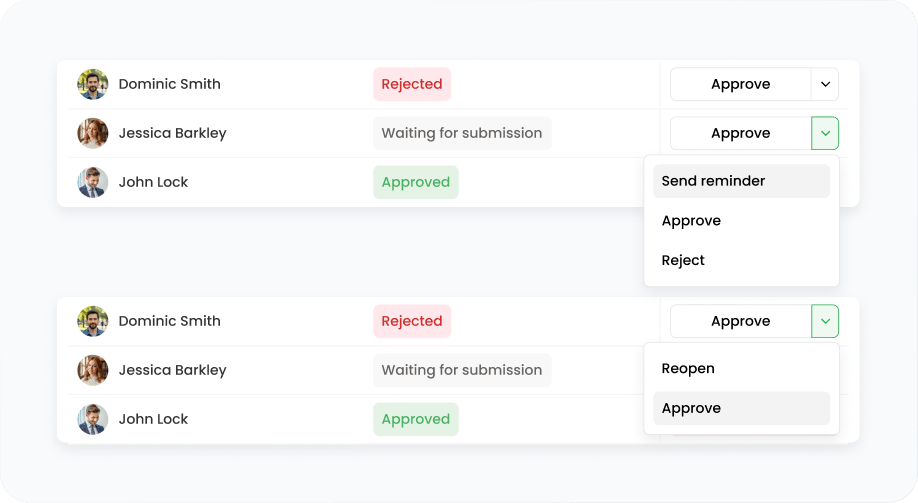
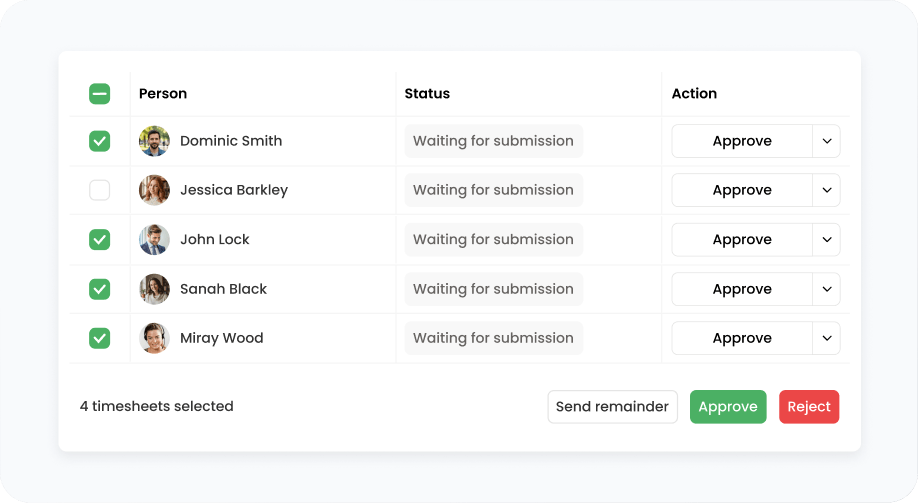
Define who's in charge of approving or rejecting timesheets. Timesheet approvers can see others' submissions in the Timesheet Approvals module and filter them by status. After review, they approve or reject timesheets and leave optional notes for employees. Time tracking admins can perform actions for the entire account, while supervisors can do so for their specific groups of team members.
features
features

Enable bulk time approval

Weekly submissions let regular employees submit their own timesheets once a week, while permitted users can approve or reject timesheets for the entire week. With bulk edits, processing timesheet data and approving work hours take just a few clicks.

Approved timesheets stay locked

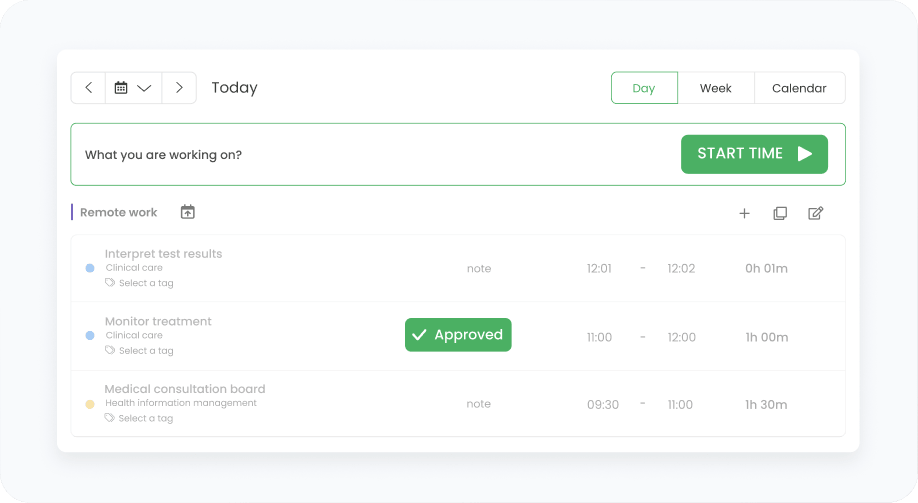
Submitted timesheets are locked while waiting for approval, and so are already approved timesheets. This keeps work hours consistent across time logs, payroll, and client invoices.

Alert on reopened timesheets

Each time a timesheet approver reopens a timesheet, the relevant user receives an email notification. This way, employees know their work hours need another look, so they can make changes before the pay period ends.

features
features

Control approved timesheets

Administrators can unlock approved timesheets whenever they want. Approval permissions also let them browse their team members' timesheet history and see each time entry's details: who added, edited, or deleted it and when.

Automate the timesheet approval process

Accurate time tracking and flexible approval workflows in TimeCamp help you forget about reviewing employee time records hour after hour – reminders, auto-submit, and auto-approval settings keep the approval process moving on.

Send approval notifications

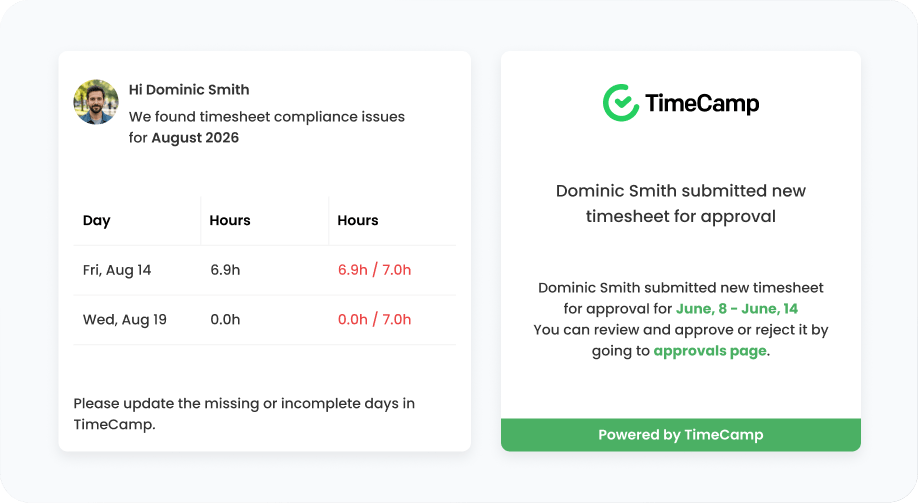
TimeCamp sends email alerts at each step of the approval workflow. Admins can set when these automated reminders should be sent, so there are no more late timesheet submissions. Users receive submission reminders and get notified when their timesheets are approved, rejected, or reopened. Timesheet approvers are pinged when timesheets are waiting for their review and approval.

features
features

Set auto-submissions

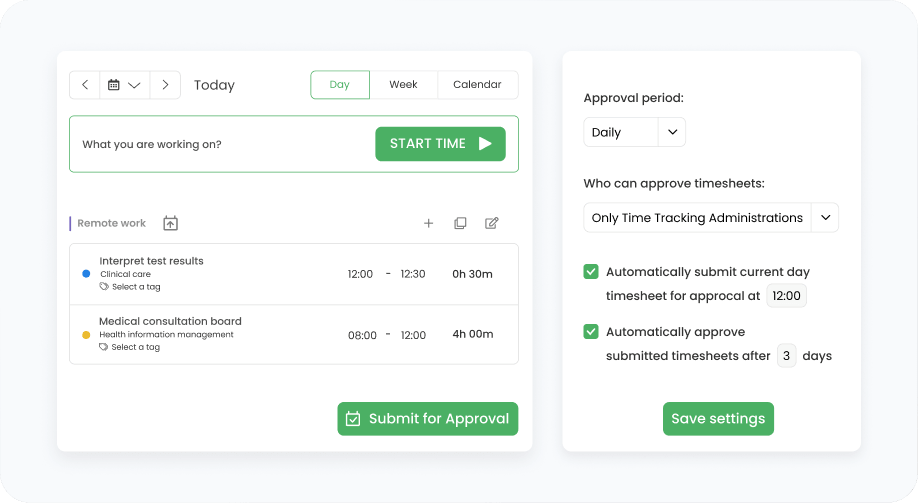
Automatic approval workflows in TimeCamp enable daily auto-submissions, taking submitting timesheets off employees' plates. Same goes for approvals – settings allow auto-approval of timesheets after a chosen number of days, so project managers don't have to review every submission by hand.

Get hassle-free timesheet approvals for accurate payroll and client billing

Keep employee timesheet submissions in check to ensure only approved hours make it into the payroll lists and invoices.

14 days for free No credit card required
badge
badge
badge
How to set up

Timesheet approval process in 4 steps

Accurate time records and quick approval workflow

01

Create your TimeCamp account

Sign up with your email or by Apple/Google account, and get access to all TimeCamp features for 14 days, including timesheet approvals feature.

Create new account
02

Turn on approvals and grant permissions

Enable the Approvals module in Account Settings, choose the approvers, and set the submission frequency: daily or weekly.

Go to Settings
03

Track work hours and submit timesheets

Users track time for projects and, when it's time to send a submission, can just click the Submit for Approval button.

Submit timesheets
04

Review and approve timesheets

Review and approve employee timesheets in the Approval module. Reject or reopen them if they need corrections, and leave optional notes.

Try Timesheet Approvals

Who are Timesheet Approvals for?

Approval workflows in TimeCamp help managers review and verify employee timesheets before submitting them for payroll processing and client invoicing.

Agencies and client billing teams category image Agencies and client billing teams

Review employee work hours before turning them into invoices.

Payroll teams category image Teams in need of payroll-ready data

Avoid payroll errors and ensure employees are paid correctly.

Managers and team leads category image Managers and team leads

Approve hours for specific groups or for entire organizations.

Operations and Finance teams category image Operations and Finance teams

Keep a history of approved records with an audit trail of edits.

Need approval workflows for large teams?

See the approval process in action during a live demo with our Specialists.

Book a demo
TimeCamp specialist

The timesheet approval mechanism is another valuable feature that ensures accurate tracking and approval of work hours.

Venkat P. COO, Verified G2 User

I just submit my timesheets and the admin approves them. (...) a great experience for me!

Mustafa K. PMO Consultant, Verified G2 User

Approval process FAQs

Timesheet approval is the workflow where a manager reviews employee work hours and either approves or rejects them, leaving optional notes with reasons. Approved records ensure error-free numbers for payroll processing, client billing, and accurate reporting. Approved timesheets are locked in TimeCamp, preventing changes unless approvers reopen them.

The timesheet approval process starts with tracking time for projects. Employees submit timesheets daily or weekly (depending on global account settings), and then managers review them. Approvers can approve or reject employee timesheets and leave notes explaining required corrections. This way, TimeCamp keeps the approval process based on timesheet data in one tool, significantly reducing administrative work.

In practice, yes – timecards are for hourly or shift work through clock-ins and clock-outs, and timesheets collect time data recorded against projects and tasks. Time tracking methods differ, but because hours go to digital timesheets, the approval process is the same for both: managers review and approve employee timesheets, ensuring payroll accuracy regardless of the data entry method.

Timesheet approval software helps managers review and approve work hours. TimeCamp time tracking software includes a built-in Timesheet Approvals module that enables daily or weekly timesheet submissions, approval or rejection with optional comments, automated reminders, auto-approvals, and locking timesheets to prevent changes. Timesheet Approvals is a feature included in the Ultimate and Enterprise plans.

The TimeCamp account administrator enables Timesheet Approvals in Settings, then sets the submission frequency – daily or weekly. Employees track time (via automatic time tracking, timers, manual data entry, mobile apps, Kiosks, etc.) and then submit their timesheets for approval. Users with approval permissions can filter employees' submissions by status, then approve or reject them one by one or in bulk, and leave optional notes with correction advice. Regular users can reopen their timesheets if the company policy allows it, but only admins can reopen approved ones.

Timesheet Approvals can be enabled by account admins in the Account Settings, in the Module list. Here you can adjust this part of timesheet management: set up timesheet approvals, define the submission period (daily or weekly), grant approval permissions to users, set automatic reminders, and set up the auto-approval process. Timesheet approvals are part of the Ultimate and Enterprise plans, but you can test them during a free 14-day trial.

The timesheet approval process is part of the Ultimate and Enterprise plans. Ultimate costs $9.99 per user per month (billed annually) or $13.99 per user per month with monthly billing. The Enterprise plan has custom pricing; contact our sales team to discuss your business needs and get a quote. You can test the feature during a 14-day free trial, no credit card required.

TimeCamp enables two levels of timesheet approval permissions. Supervisors and admins can review and approve timesheets for their specific groups and subgroups, while Time Tracking Administrators can do so for the entire organization. Admins can hide task names from approvers in Settings.

Choose weekly submissions if your organization plans, bills, or pays for the entire week, while submitting timesheets daily supports daily control. You can also automate the submission and approval process. Submission frequency applies to the entire account.

Users can submit their timesheets just by clicking the Submit for Approval button on their Timesheet page. The button appears below the entries in the Day view and next to the selected day in the Calendar view. In Week view, it appears next to each date in the top part of a day column. If an organization enables daily submission, users submit each day separately, and if weekly submission is enabled, clicking the button submits the entire week at once. Admins can adjust the approval period in the Settings.

Yes, they can still make corrections while timesheets are waiting for approval. To fix entries, click the yellow Pending Approval button, choose Reopen, make corrections, and submit your timesheet once again. Regular users can't reopen approved timesheets; only admins can unlock them, and approvers can reopen them.

Approved timesheets are locked, so regular users can't edit them. Employees receive approval email notifications. Only admins can unlock timesheets and make further corrections at any time, or approvers can reopen them.

A rejected timesheet is open for editing again. Approvers can add optional notes describing what should be corrected to get approved. Once edits are done, the employee resubmits their timesheet and waits for another approval. Rejection doesn't mean the logged hours are removed from reports.

Yes, approvers can reopen a timesheet, and admins can unlock it at any time. Regular employees can't reopen their submissions, yet they always get an email when their approvers reopen them.

Yes, the entire approval process takes place in the web app, so they can review and approve timesheets from anywhere with an internet connection. When an employee submits a timesheet, the approver receives an email and then approves the submission in the browser. Employees, on the other hand, track time in the browser and on desktop or mobile, but can submit their hours for approval from the browser or using their mobile apps.

Yes, admins can automate daily and weekly submissions and set the time they should be sent. They can also set up auto-approvals after the chosen number of days. Settings also enable automated reminders, bulk approvals, and rejections.

Yes, employees receive submission reminders and alerts when their timesheets are approved, rejected, or reopened. Supervisors and admins are notified when they receive a timesheet for approval. All automated reminders are on by default; each user can turn them off in their profile. Admins can schedule the reminders for a chosen day and time.

The approval process ensures managers thoroughly review hours before the pay period ends or before sending client invoices. Locking timesheets after approval prevents time theft and timesheet inconsistencies; however, unapproved hours still appear in reports. We strongly advise establishing a routine of approving timesheets before running payroll or sending invoices.

Timesheet management in TimeCamp can help your organization stay compliant and achieve timesheet accuracy. Timesheets get locked after approval, and approvers can leave notes explaining their decisions. Only approvers and admins can reopen the submissions, and timesheet history tracks every change. Always make sure your organization's timesheet management aligns with local labor laws.

To run the process smoothly, we recommend setting one fixed deadline (e.g., each Friday at 5 PM) and letting TimeCamp send automated reminders beforehand. Also, grant each team at least one approver to avoid stalling. Also, when you decide to reject a timesheet, give the employee clear advice on what to correct, and make sure everything is approved before payroll processing and client invoicing. If your organization has enabled auto-approval, leave your employees a few days to submit their timesheets first.

Yes, employees can submit their project time via our mobile app for iOS and Android. The Submit Day for Approval button is at the top of the timesheet view. However, managers review timesheets only in the web app.

timecamp img

Give every timesheet a sign-off

Set up a timesheet approval process in minutes – by yourself during the free 14-day trial, or schedule a demo with our team and let them guide you through it.

14 days for free No credit card required
badge
badge
badge
badge
badge
badge
badge
badge
badge
badge